


Microphone settings are an essential part of any audio recording or communication system, including Android devices. Different microphone settings can greatly affect the quality and clarity of the audio being recorded or transmitted. Let’s discuss on how to change microphone settings on android, including adjusting the microphone sensitivity, selecting the recording mode, and choosing the microphone source. We will also cover some important considerations when using a microphone on an Android device, such as noise reduction, echo cancellation, and microphone placement.
Understanding Android Microphone Settings
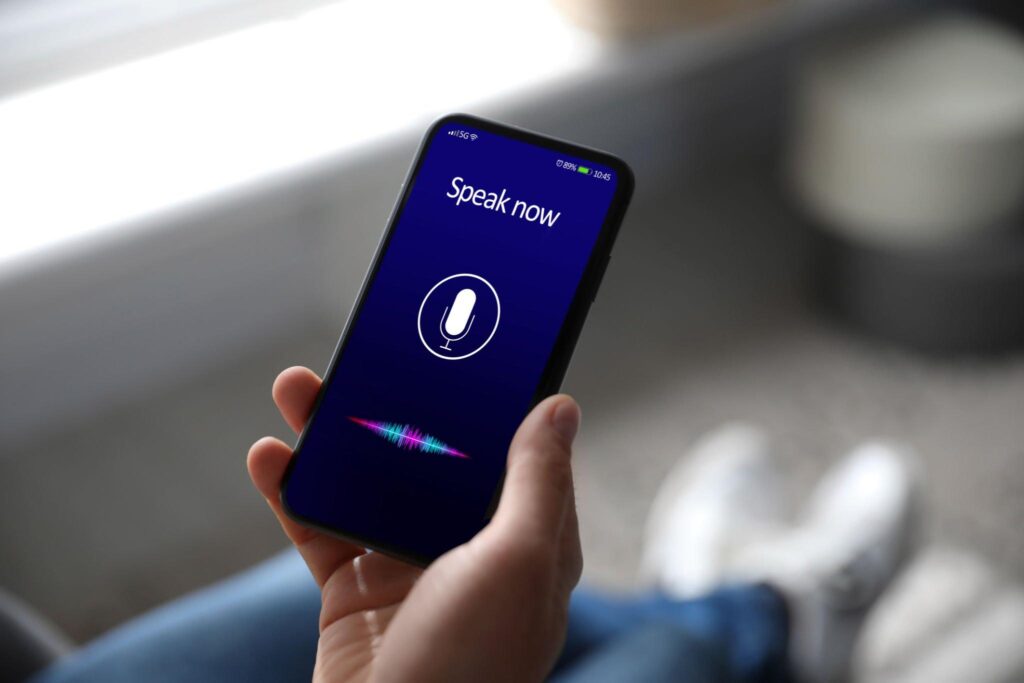
Android devices come with various microphone settings that can affect the quality of sound recordings, voice calls, and other audio-related activities. It is essential to understand these settings to get the most out of your device’s microphone.
Importance of Adjusting Microphone Settings
Adjusting microphone settings on Android can help improve the quality of audio recordings, voice calls, and other audio activities. The right microphone settings can make it easier to record audio in noisy environments, reduce background noise during voice calls, and enhance the overall audio quality.
Various Microphone Settings Available on the Android
Here are the various microphone settings available on Android:
Microphone Sensitivity
Microphone sensitivity is a setting that determines how much sound the microphone picks up. On Android, you can adjust the microphone sensitivity to high or low based on the audio recording environment. In a noisy environment, you can set the sensitivity to low to reduce background noise. In a quiet environment, you can set the sensitivity to high to capture even the smallest sounds.
Noise Suppression
Noise suppression is a setting that reduces background noise during voice calls. Android devices come with noise suppression settings that automatically filter out unwanted background noise, such as wind or traffic sounds, during phone calls.
Acoustic Echo Cancellation
Acoustic echo cancellation is a setting that eliminates audio feedback during voice calls. This feature is particularly useful when using speakerphone mode, where the microphone can pick up audio from the speaker, causing an echo effect. The acoustic echo cancellation setting helps prevent this issue by cancelling out the feedback loop.
Audio Source
Audio source is a setting that determines which microphone is being used on the device. Android devices come with various microphones, such as a front-facing microphone for voice calls and a back-facing microphone for audio recording. This setting allows you to choose the microphone that best suits your needs.
Audio Format
Audio format is a setting that determines the format of the audio recording. Android devices support various audio formats, such as AAC, WAV, and MP3. Choosing the right audio format can help ensure the best quality recording for your specific needs.
Changing Basic Microphone Settings on Android

Here’s a step-by-step guide to adjusting basic microphone settings on Android:
- Access microphone settings: On your Android device, go to “Settings” and scroll down until you find “Apps & notifications” or “Application manager.” Tap on it, and then select the app you want to adjust the microphone settings for.
- Adjust microphone volume: To adjust the microphone volume, go to the app’s settings, and look for “Microphone” or “Audio settings.” Tap on it, and then adjust the slider to increase or decrease the volume as desired.
- Turn off microphone: If you want to turn off the microphone on your Android device completely, go to “Settings,” then “Privacy,” and then “Permission manager.” Find the app you want to turn off the microphone for and toggle off the switch next to “Microphone.”
- Enable/disable noise suppression: To enable or disable noise suppression, go to the app’s settings, and look for “Audio settings” or “Microphone.” Tap on it, and then toggle the switch next to “Noise suppression” on or off, depending on your preference.
Note: The exact steps to access microphone settings and adjust microphone settings may vary slightly depending on the Android device and the version of Android you’re using.
Advanced Microphone Settings on Android

Sure, here’s a step-by-step guide to advanced microphone settings on Android:
Adjusting Microphone Gain on Android
- Open the Settings app on your Android device.
- Scroll down and tap on “Sound & vibration”.
- Tap on “Advanced sound settings”.
- Tap on “Microphone”.
- Toggle on “Use volume keys for media” option.
- Now press the volume up/down buttons on your phone to increase/decrease the microphone gain.
Adjusting Microphone Equalizer on Android
- Download a third-party equalizer app from the Google Play Store (e.g. Equalizer FX, Music Equalizer).
- Open the equalizer app and grant it necessary permissions.
- Select the “Microphone” option from the app menu.
- Adjust the equalizer settings (e.g. bass, treble, mid-range) according to your preference.
- Save the settings and exit the app.
Enabling/Disabling Microphone Effects on Android
- Open the camera app on your Android device.
- Swipe to the “Video” recording mode.
- Tap on the gear icon to access the camera settings.
- Scroll down to “Microphone” settings.
- Toggle on/off any microphone effects options (e.g. wind noise reduction, stereo sound recording).
- Save the settings and exit the camera app.
Note: The availability of advanced microphone settings may vary depending on your Android device model and operating system version.
Troubleshooting Microphone Issues on Android
To troubleshoot microphone issues on Android, you can try the following tips:
- Check the microphone hardware: Make sure that your microphone is not physically damaged and that it is properly connected to your device.
- Check the volume: Ensure that the microphone volume is turned up and that it is not muted.
- Restart your device: Restarting your device can help fix many software-related issues, including microphone issues.
- Clear app cache and data: If the microphone issue is only happening with a specific app, try clearing the app’s cache and data in your device’s settings.
- Update your device’s software: Make sure that your device is running the latest version of Android, as updates often include bug fixes and performance improvements.
- Use a different app: If the issue persists with a specific app, try using a different app to see if the issue is resolved.
- Factory reset your device: If all else fails, you can try resetting your device to its factory settings. This will erase all data on your device, so be sure to back up your data first.
To troubleshoot microphone issues with third-party apps on Android, you can try the following tips:
- Check app permissions: Make sure that the app has permission to access your microphone. You can check app permissions in your device’s settings.
- Update the app: Make sure that the app is up to date, as updates often include bug fixes and performance improvements.
- Clear app cache and data: Try clearing the app’s cache and data in your device’s settings.
- Reinstall the app: If the issue persists, try uninstalling and reinstalling the app.
- Contact the app developer: If none of the above tips work, you can try contacting the app developer for support. They may be able to provide additional troubleshooting steps or issue a bug fix.
Tips and Tricks for Optimizing Microphone Performance on Android

Here are some tips and tricks for optimizing microphone performance on Android:
- Check your microphone settings: Start by checking the microphone settings on your Android device. Go to “Settings” > “Sound” > “Microphone” to adjust the sensitivity, volume, and other settings.
- Use a high-quality microphone: If you want to record high-quality audio on your Android device, it’s important to use a good microphone. You can use a wired or wireless microphone that’s compatible with your Android device.
- Reduce background noise: If you’re recording in a noisy environment, try to reduce background noise as much as possible. You can do this by recording in a quiet location or using a noise-canceling microphone.
- Use a windscreen: If you’re recording outdoors, a windscreen can help reduce wind noise and improve the overall sound quality.
- Avoid holding the device: When recording audio on your Android device, avoid holding it in your hand. Instead, place it on a stable surface or use a tripod to reduce handling noise.
- Use a recording app: To record high-quality audio on your Android device, use a recording app that allows you to adjust the microphone settings and record in different formats.
- Experiment with different positions: If you’re using an external microphone, try different positions to find the one that works best for you. For example, you might get better sound quality by positioning the microphone closer to the sound source.
- Use an audio interface: If you’re using a professional microphone, you may need an audio interface to connect it to your Android device. An audio interface will help you get the best sound quality and reduce noise.
Final Thoughts
Microphone settings can vary between Android devices and versions, so it’s important to consult your device’s manual or online resources for specific guidance. Overall, taking the time to understand and optimize your how to change microphone settings on android can greatly improve the quality of audio recordings and communication, making it a valuable investment for anyone who frequently uses their device for voice-related tasks.
