


Are you an avid gamer looking to get the most out of your HP Omen 27I monitor? The HP Omen 27I is a popular choice among gaming enthusiasts due to its impressive features and performance. To fully unlock its potential, it’s crucial to optimize the monitor settings for an immersive and visually stunning gaming experience. In this article, we’ll guide you through HP Omen 27I Best Settings for Gaming, ensuring you get the most out of every gaming session.
Understanding the HP Omen 27I Monitor
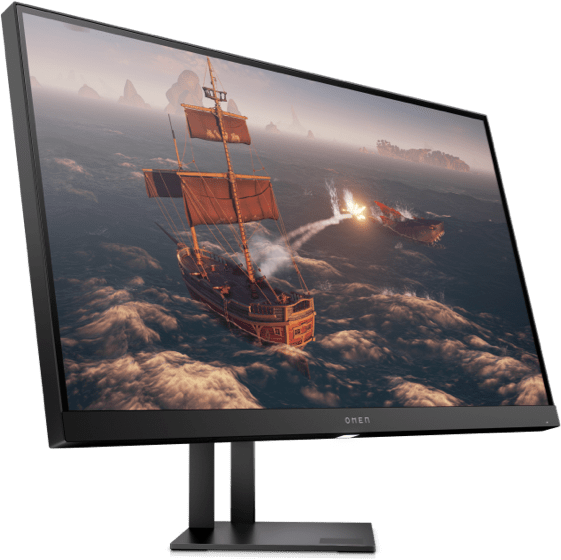
Before we delve into the settings, let’s understand the HP Omen 27I’s key features and specifications. This monitor boasts a 27-inch Quad-HD (2560×1440) display with a fast 165Hz refresh rate, allowing for smooth and fluid visuals during gameplay. The response time of 1ms ensures minimal motion blur, crucial for fast-paced games.
Importance of Optimizing Settings for Gaming
Optimizing your monitor settings for gaming is vital because it enhances the overall gaming experience. Proper settings can reduce input lag, motion blur, and screen tearing, providing a competitive advantage in fast-paced games. Additionally, optimizing color settings can improve visibility, helping you spot enemies or objects more easily.
Best Display Settings for Gaming
Let’s start by optimizing the display settings for the best gaming performance.
- Resolution and Refresh Rate
For most gamers, the ideal resolution on the HP Omen 27I is 2560×1440, as it strikes the perfect balance between visual fidelity and performance. To ensure a smooth gaming experience, set the refresh rate to 165Hz, which reduces motion blur and delivers a more responsive feel.
- Response Time and Overdrive
A 1ms response time is perfect for eliminating motion blur and ghosting in fast-paced games. Additionally, enabling overdrive can further reduce response time, but be cautious not to set it too high, as it may introduce artifacts.
- Color Calibration and Gamut
Color accuracy is essential for an immersive gaming experience. Consider calibrating your monitor or using predefined color profiles for accurate representation. If your games support a wider color gamut, enable it for richer and more vibrant visuals.
- Adaptive Sync and G-Sync/FreeSync
To eliminate screen tearing and stuttering, enable Adaptive Sync on the HP Omen 27I. If you have an NVIDIA graphics card, make sure to enable G-Sync, while AMD users should enable FreeSync for optimal performance.
Adjusting Brightness and Contrast
Proper brightness and contrast settings are crucial for a comfortable gaming experience.
- Ambient Lighting Considerations
Take into account the ambient lighting conditions in your gaming setup. Adjust the monitor’s brightness to complement the lighting in your room. Avoid setting the brightness too high, as it can cause eye fatigue during extended gaming sessions.
- Eye Comfort and Blue Light Filters
To reduce eye strain, enable the blue light filter feature on the HP Omen 27I. This filter minimizes blue light emissions, which can disrupt your sleep patterns and cause eye discomfort.
Audio Settings for an Immersive Gaming Experience

While visuals play a significant role in gaming, audio is equally important for creating an immersive experience.
- Built-in Speakers vs. External Audio Solutions
While the HP Omen 27I comes with built-in speakers, they may not provide the best audio quality for gaming. Consider investing in external speakers or gaming headphones for a more immersive and detailed audio experience.
- Virtual Surround Sound
Many games support virtual surround sound technologies, such as Dolby Atmos or DTS:X. Enable these features if available to enhance positional audio, providing a competitive edge in games where sound cues are essential.
Optimizing Gameplay with Customizable Features
The HP Omen 27I offers various customizable features to enhance your gaming experience.
- On-Screen Display (OSD) Settings
Explore the OSD settings to customize the monitor’s display options, such as brightness, contrast, and color settings. Experiment with different configurations to find what suits your preferences and the game you’re playing.
- Game-specific Presets
Some games may have specific presets designed for the HP Omen 27I monitor. These presets optimize the monitor’s settings to deliver the best visuals and performance for that particular game. Check if your favorite games offer such presets and take advantage of them.
Overclocking for Enhanced Performance
If you’re looking to push your monitor and gaming setup to its limits, consider overclocking.
- Risks and Benefits of Overclocking
Overclocking the HP Omen 27I monitor can lead to higher refresh rates, providing smoother gameplay. However, overclocking also comes with potential risks, such as increased heat generation and reduced monitor lifespan. Proceed with caution and ensure proper heat management.
- Stability and Heat Management
When overclocking, monitor the monitor’s stability and keep an eye on temperatures. If you encounter stability issues or notice excessive heat, dial back the overclock settings to ensure a reliable and long-lasting gaming experience.
Troubleshooting Common Issues
Despite optimizing your settings, you may encounter some common issues while gaming on the HP Omen 27I. Here are a couple of troubleshooting tips.
- Screen Tearing and Input Lag
If you experience screen tearing or input lag, ensure that Adaptive Sync (G-Sync or FreeSync) is enabled. Also, check that your graphics drivers are up to date, as outdated drivers can cause performance issues.
- Flickering and Artifacts
Flickering or artifacts on the screen can be caused by incompatible settings or faulty cables. Ensure that your display cables are properly connected and try adjusting the settings to resolve these issues.
FAQ About HP Omen 27I Best Settings for Gaming
Does the HP Omen 27I support HDR?
No, the HP Omen 27I does not support HDR.
Can I use the HP Omen 27I for content creation?
While the HP Omen 27I delivers excellent gaming performance, it may not be the best choice for professional content creation due to its limited color gamut and lack of HDR support.
What is the recommended distance for gaming on the HP Omen 27I?
Sit at a comfortable distance from the monitor, typically around 2 to 3 feet, to ensure an optimal viewing experience.
Can I connect multiple monitors to the HP Omen 27I?
Yes, the HP Omen 27I supports daisy-chaining multiple monitors through DisplayPort for an extended gaming setup.
Does the HP Omen 27I have built-in USB ports?
Yes, the HP Omen 27I features a USB hub with several ports, allowing you to connect peripherals conveniently.
Can I adjust the height and tilt of the HP Omen 27I monitor?
Yes, the HP Omen 27I monitor offers adjustable height and tilt options, allowing you to find the most comfortable viewing position for your gaming sessions.
In The End
Optimizing the HP Omen 27I monitor’s settings is crucial for a top-tier gaming experience. By following the guidelines outlined in this article, you can unleash the full potential of your monitor and immerse yourself in visually stunning and responsive gameplay. Experiment with different settings and configurations to find what suits your preferences and the games you enjoy. Get ready to take your gaming to new heights with the HP Omen 27I monitor!
Related Topics:
- Razer Naga Trinity Dpi Settings
- Unlock Advanced Bios Settings Lenovo Ideapad
- Best Picture Settings for Lg TV Gaming
- Samsung Odyssey G9 Best Settings for Gaming
- Rtx 2070 Overclock Settings
- How to Reset a Wii to Factory Settings
- Best Bios Settings for Gaming
- best tv settings for gaming
- xbox series x best video fidelity settings
- Halo Infinite Pro Controller Settings
- BenQ Zowie xl2411p Best Settings
- Samsung Odyssey G7 Calibration Settings
