


Are you a proud owner of the Samsung Odyssey G7 monitor? Congratulations! With its stunning display and immersive gaming experience, the Samsung Odyssey G7 is truly a remarkable piece of technology. To make the most out of this gaming monitor, it’s essential to optimize its calibration settings. In this article, we will guide you through the process of calibrating your Samsung Odyssey G7 to ensure that you’re getting the best visual performance possible.
The Samsung Odyssey G7 is a high-performance gaming monitor that offers a multitude of features, including a curved display, high refresh rates, and vibrant colors. However, out of the box, the default settings may not provide the optimal visual experience. Calibrating your monitor allows you to adjust various settings to achieve accurate colors, improved contrast, and better overall image quality.
Why Calibrate Your Monitor?

Calibrating your monitor is crucial because it ensures that the colors displayed on the screen are accurate and consistent. Factory settings may not always represent the true colors, leading to a distorted visual experience. By calibrating your Samsung Odyssey G7, you can achieve more lifelike colors, accurate contrast levels, and a well-balanced image.
Samsung Odyssey G7 Calibration Settings
Preparing for Calibration
Before starting the calibration process, it’s important to create the ideal environment for accurate results. Here are a few steps to follow:
- Ensure Proper Lighting: Dim the lights in your room to reduce glare and reflections on the monitor screen.
- Remove Color Distractions: Remove any colorful objects near your monitor that could impact your perception of color accuracy.
- Reset to Default: If you have made any previous adjustments to your monitor settings, reset them to the factory defaults to start with a clean slate.
Adjusting Brightness and Contrast
The first step in calibrating your Samsung Odyssey G7 is to adjust the brightness and contrast settings. Follow these steps:
- Brightness: Set the brightness level to a comfortable level that suits your environment. Adjust it until you can clearly see details in dark and bright areas without straining your eyes.
- Contrast: Adjust the contrast level to enhance the difference between light and dark areas. Find the sweet spot where details are well-defined, and the image appears balanced.
Fine-tuning Color Settings
To achieve accurate and vibrant colors on your Samsung Odyssey G7, you need to adjust the color settings. Here’s how:
- Color Temperature: Choose the color temperature that suits your preference. “Warm” tends to produce a reddish tint, while “Cool” gives a bluish tint. “Neutral” is often the closest to accurate colors.
- Saturation and Vibrancy: Adjust the saturation and vibrancy settings to achieve a balanced and natural-looking color palette. Avoid oversaturation, as it can lead to unrealistic and artificial colors.
Gamma and Black Level Calibration
Gamma and black level calibration are essential to ensure accurate shadow details and depth in your visuals. Here’s what you need to do:
- Gamma: Adjust the gamma setting to control the brightness and contrast of mid-tone colors. Experiment with different gamma levels to find the one that suits your preference and enhances the overall image quality.
- Black Level: Set the black level to achieve deep and rich black tones. Adjust it until you can distinguish details in dark areas without losing shadow details.
Adjusting Sharpness and Clarity
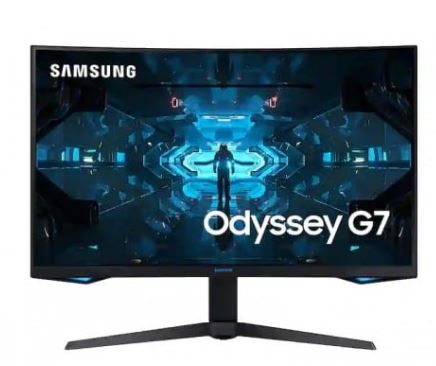
To enhance the sharpness and clarity of your Samsung Odyssey G7’s display, follow these steps:
- Sharpness: Adjust the sharpness setting to make the edges of objects appear more defined. Be careful not to over-sharpen, as it can introduce artifacts and distortions.
- Clarity: Fine-tune the clarity setting to enhance the overall image quality, making it appear cleaner and more detailed. Find the right balance to avoid excessive noise or artificial enhancements.
Finalizing the Calibration
After adjusting the individual settings, take a step back and evaluate the overall image quality. Make any necessary tweaks to achieve the desired results. Repeat the process if needed until you’re satisfied with the calibration.
Verifying Calibration Results
To ensure that your Samsung Odyssey G7 is properly calibrated, consider using calibration tools or test patterns. These tools can help you verify the accuracy of colors, brightness, and other settings. Compare the displayed patterns with reference images to ensure consistency and accuracy.
FAQ About Samsung Odyssey G7 Calibration Settings
How often should I calibrate my Samsung Odyssey G7 monitor?
It’s recommended to calibrate your monitor every few months to maintain accurate and consistent colors.
Can I use software to calibrate my Samsung Odyssey G7?
Yes, there are several calibration software options available that can assist you in calibrating your monitor effectively.
Will calibrating my monitor improve gaming performance?
Calibrating your monitor primarily enhances the visual experience by improving color accuracy and image quality. It may not directly impact gaming performance but can make the games look more vibrant and immersive.
Are there any specific calibration settings recommended for professional photographers or graphic designers?
Professional photographers and graphic designers often require more precise color accuracy. It’s recommended for them to use color calibration tools and follow specific calibration workflows to achieve optimal results.
Can I use the same calibration settings for other Samsung monitors?
While some calibration settings may be applicable to other Samsung monitors, it’s important to note that each model may have slight differences. It’s best to refer to the calibration guides specific to your monitor model.
Parting Shot
Calibrating your Samsung Odyssey G7 gaming monitor is essential to unlock its full potential. By adjusting the brightness, contrast, color settings, gamma, black levels, sharpness, and clarity, you can achieve an optimized visual experience that truly immerses you in your favorite games. Take the time to calibrate your monitor, and you’ll be rewarded with accurate colors, improved contrast, and a more lifelike image.
Related Topics:
- Razer Naga Trinity Dpi Settings
- Unlock Advanced Bios Settings Lenovo Ideapad
- Best Picture Settings for Lg TV Gaming
- Samsung Odyssey G9 Best Settings for Gaming
- Rtx 2070 Overclock Settings
- How to Reset a Wii to Factory Settings
- Best Bios Settings for Gaming
- best tv settings for gaming
- xbox series x best video fidelity settings
- Halo Infinite Pro Controller Settings
- BenQ Zowie xl2411p Best Settings
